The Teacher Tapp Intelligence Hub is where organisations work with Teacher Tapp online. You can use it to do two things:
- Search our question library, preview what’s been asked, and purchase the data you need
- Submit your CPD events to be promoted to teachers in the Teacher Tapp app.
One free account gives you access to both. This page walks you through how it works.
What’s in the Hub?
There are thousands of questions available, and the library grows every day as new questions are added. Since 2018, over 10,000 teachers have answered questions on the Teacher Tapp app every day. The Hub lets you explore our question library from 2021 to today, covering topics from workload and wellbeing to curriculum, behaviour, CPD, technology, and much more.
Some of our work — such as open-ended questions and our Brand Tracker service — isn’t included in the Hub. If you’re interested in these, get in touch and we can help.
The Hub is also home to Events. If you run CPD, conferences, courses or podcasts for teachers, you can list them here for free and they’ll appear in the Event Feed in the Teacher Tapp app. If you used our old Events Portal, your account has been moved across and your login is the same.
Getting started
Creating an account is free and only takes a moment at hub.teachertapp.co.uk/signup. Once you’re in, the menu on the left takes you to each part of the Hub:
- Question Library: search and buy results from past questions
- My data: download anything you’ve bought, as often as you need
- Events: create, save and publish your event listings
- Settings: change your organisation name and invite colleagues
If several people in your organisation use the Hub, invite them from Settings so everyone shares the same purchases and event listings.
Question Library
How to search
You can search by keyword, filter by topic and date, or do both at once. If you’re searching by keyword, the main thing to know is to keep it short; one or two words will almost always get you better results than a long phrase or full sentence.
If your first search returns too many results, try a more specific keyword. If it returns nothing, try a broader or alternative term. For example, if mental health returns nothing, try wellbeing or stress instead.
Or use the filters. Next to the search box are two filters you can use instead of, or alongside, a keyword. Topic lets you jump straight to a subject area (behaviour, assessment, CPD, technology and dozens more) without typing anything. Last asked limits results by recency: the most recent 3 months, 6 months or year, or leave it on Any time for everything. Combine a keyword with these to narrow things down quickly.
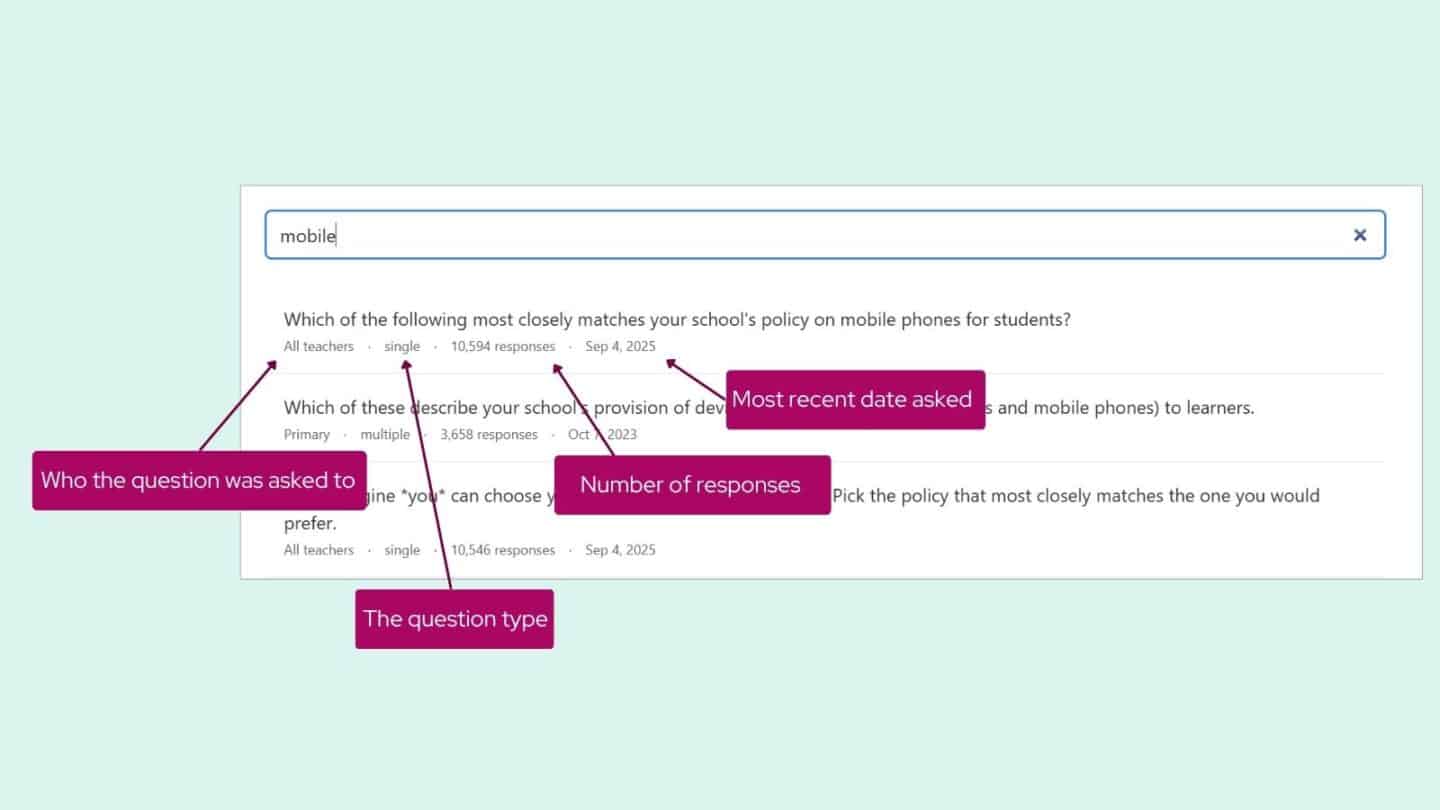
Search results show you a list of matching questions. Underneath each question you’ll see some detail at a glance: who the question was asked to (e.g. “All teachers” or “Primary”), the question type (single or multiple choice), the number of responses, and the most recent date it was asked. This helps you quickly judge which results are most relevant before clicking through.
Browsing questions
Scan your results and click into the questions that look most relevant. Each result shows you who was asked and when, so you can quickly spot what you need.
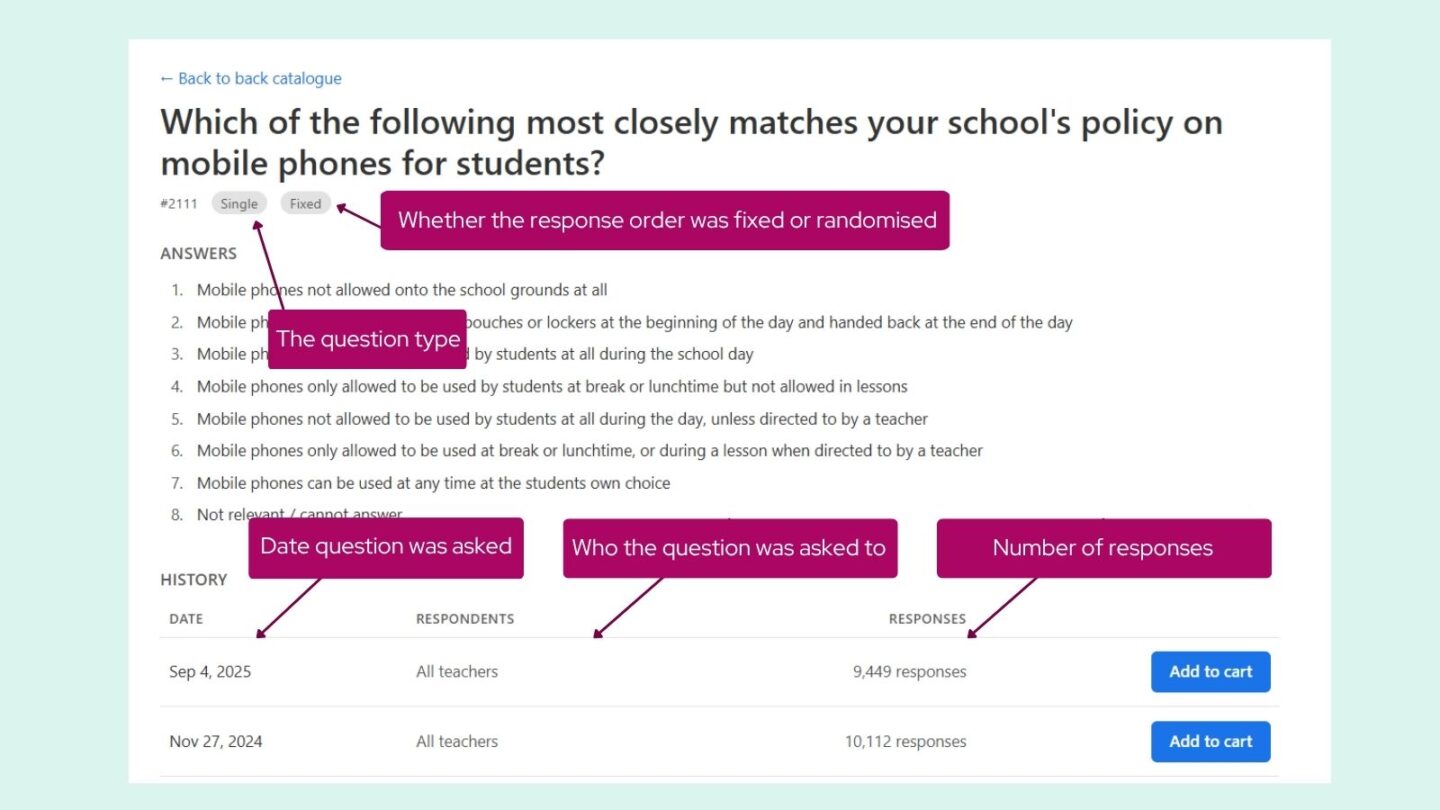
For each question you’ll see the full picture: the complete question wording, all the answer options, whether the response order was fixed or randomised, and the question type.
Below that is the question history. This shows every date that question has been asked (if it has been asked multiple times), who it was asked to, and how many teachers responded each time.
Each row has its own Add to Cart button, because each date is a separate purchasable item. So if a question on mobile phone policies was asked in February 2024, November 2024, and September 2025, you can buy just the date you need, or purchase several to see how responses have changed over time.
What’s included
When you purchase a question, you’ll receive a spreadsheet containing the full weighted results, broken down by standard demographics including:
School characteristics:
- School phase (primary / secondary)
- Governance
- Funding
- Region
- School size
- FSM
Teacher characteristics:
- Seniority
- Subject / Key Stage
- Experience
- Age
- Gender
- SENCO (2025 onward)
Each question costs £500 and is available to purchase on demand. This is the same data our research partners have always received, the Hub just makes it faster to find and access.
How to purchase
Once you’ve found a question you’d like to buy:
- Click ‘Add to Cart’ on the question page.
- When you’re ready, go to your cart and check out.
- Your spreadsheet will be available to download immediately & saved in your ‘my data’ section if you need to download it again at any time.
Can’t find what you’re looking for?
The Question Library covers the questions that have already been asked on Teacher Tapp. If you need a question on a topic we haven’t covered yet, we can run one for you.
Get in touch at hello@teachertapp.co.uk to discuss commissioning a bespoke question.
Promoting your events
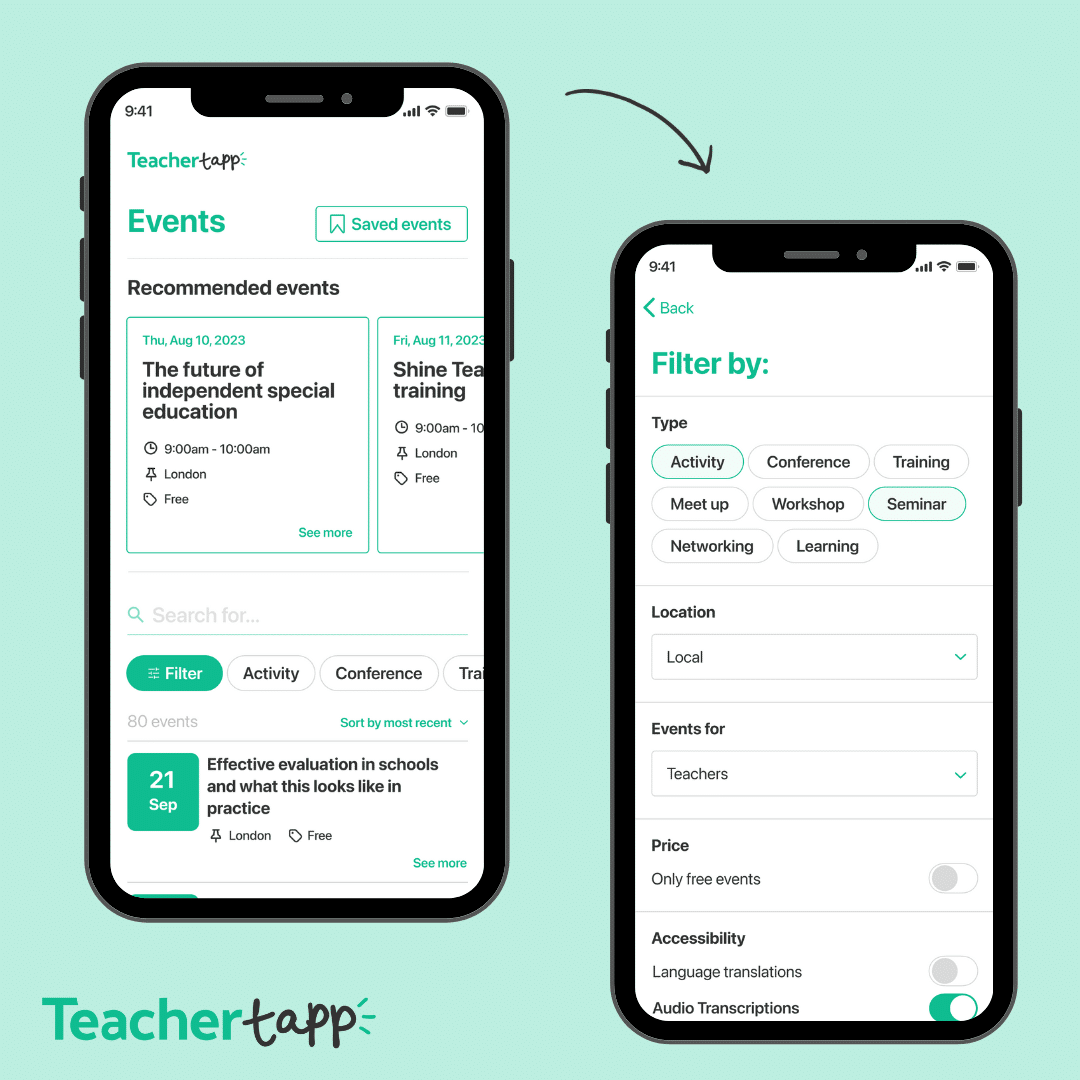
The Teacher Tapp’s Event Feed helps teachers find CPD that’s relevant to them. Around 10,000 teachers use the app every day. They can filter events by type, location, price and topic, and they also get recommendations based on their role.
What you can list
Any course, meeting, conference, seminar or podcast episode that is mainly aimed at, and available to, qualified teachers working in England. Events need to be something a working teacher could attend. We can’t list full-time study courses, events only for trainee teachers, events aimed only at other school staff, or listings that are purely product adverts.
What it costs
Listing events is free.
Creating an event
In the Hub, go to Events and click Create event. You’ll be asked for:
- Event info: a title, a link to your booking page, a short description (up to 500 characters) and up to two topics
- Who it’s for: the key stages it suits, and whether it’s only for senior leaders or validated teachers
- Ticket price: a fixed price or a price range (use £0 if it’s free)
- Location: in-person, online, or both. If you haven’t booked a venue yet, you can give the town or city instead.
- Date and time: for events that run over several days, enter the first date
Tick to confirm you agree to the Hub terms and conditions, then either Save draft to come back to it later or Publish.
What happens next
We may review listings before or after they go live, and we can edit or decline any that don’t meet our terms. Teachers who are interested will click through to your booking page, so make sure it’s clear and up to date. If your event is cancelled or changes, you’re responsible for telling anyone who has booked and for handling refunds.
Tips for a strong listing
Keep your title specific. Use the description to explain what teachers will be able to do afterwards. Choose targeting carefully: a listing aimed at the right key stage will reach fewer people, but the right ones.
FAQs
How far back does the data go?
The Hub currently includes questions from 2021 onwards. All data is weighted to be representative of teachers in England.
I can see the same question was asked on multiple dates. Do I need to buy all of them?
No, each date is a separate item, so you can buy just the one you need. Purchasing multiple dates is useful if you want to track how responses have changed over time.
What demographics are included in the download?
Each spreadsheet includes breakdowns by gender, school phase, region, and other standard demographics. If a question has been targeted (e.g. just asked to primary teachers) you will see the breakdown for that group only. If you need a more specific cut of the data, get in touch and we can discuss what’s possible.
Can I purchase multiple questions at once?
Yes, add as many as you like to your cart and check out in one go.
What is the cost of listing an event?
Listing events is completely free.
I used the old Events Portal. Do I need a new account?
No. Your account has moved into the Hub and your login is the same.
Can I see how many teachers viewed my event?
Not at the moment. Teachers click through to your own booking page, so your own booking data is the best measure of response.
Can I edit an event after publishing?
Yes, just open up the event within the Hub and after you have edited, hit ‘publish’ again to update.
Can colleagues manage events with me?
Yes. Invite them from Settings and they’ll see the same listings.
Questions?
We’d love to hear from you. If you have any questions about the Hub, need help finding something, or want to discuss a credit package, email us at hello@teachertapp.co.uk.